
How to Fix YouTube Shorts Not Working [2026 Update]
Have you opened YouTube for a quick scroll only to find YouTube Shorts not working? The videos may be stuck loading, show a black screen, play without sound, or disappear from the app navigation entirely.
Shorts is usually reliable, but app cache, network restrictions, browser extensions, account settings, and regional issues can all interrupt playback. Use the steps below to narrow down the cause and get Shorts working again.
You May Also Like: How to Download YouTube Videos without Premium
Why are YouTube Shorts Not Working?
Before fixing the issue, identify the likely cause. Most Shorts problems come from one of these areas:
- Unstable network connection: Shorts needs fast, continuous loading, so even brief network drops can stop playback.
- App cache accumulation: Corrupted temporary files can make the YouTube app behave unpredictably.
- Outdated app version: Older versions may not support current Shorts playback features.
- Browser extension conflicts: On desktop, ad blockers or script tools can block required playback scripts.
- Account or regional restrictions: Restricted Mode, account experiments, or location rules can hide Shorts.
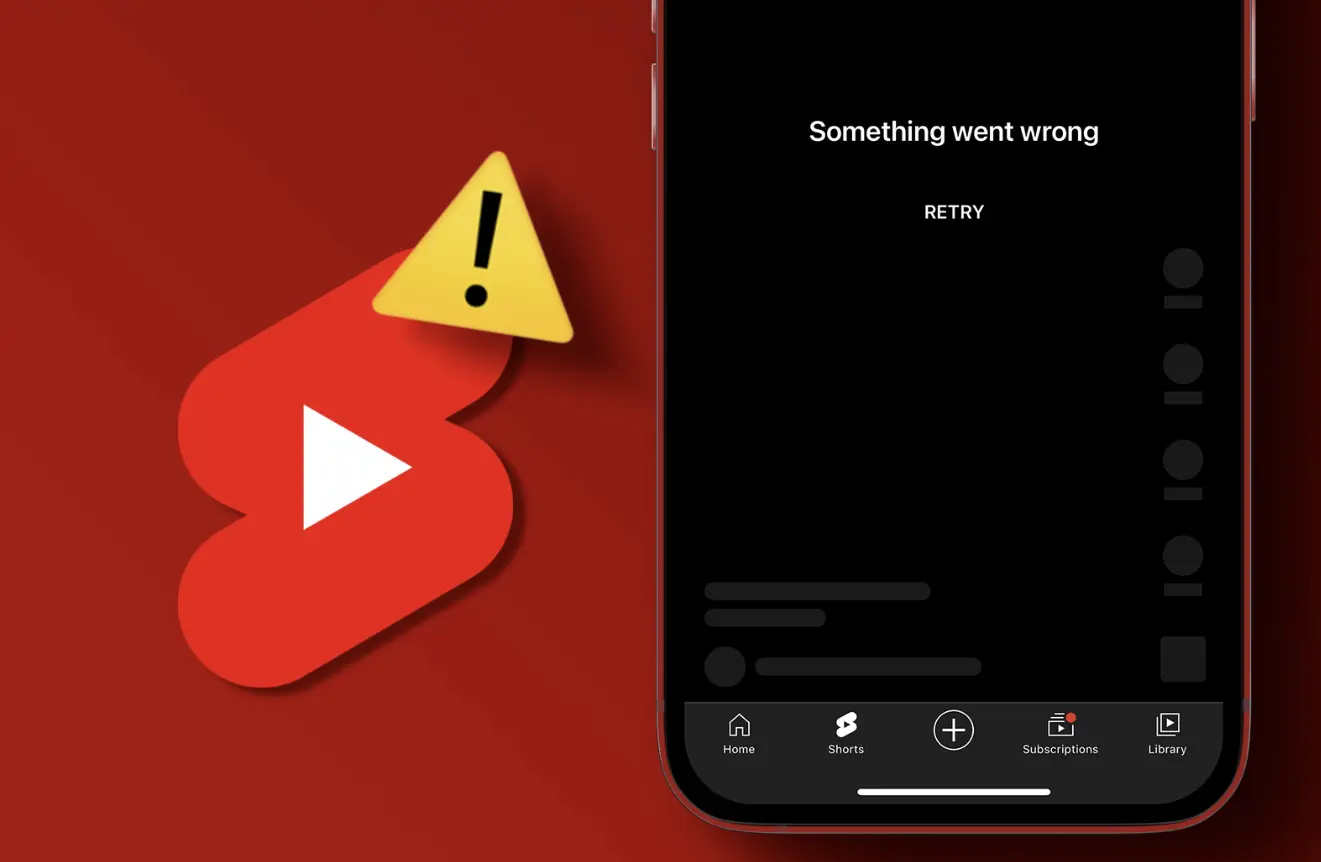
Mobile Devices: How to Fix YouTube Shorts Not Working
Most people watch Shorts on a phone, so start with app, network, and system settings. These checks apply when Shorts is not showing, not loading, or not playing correctly.
1. Check Network Status and Data Restrictions
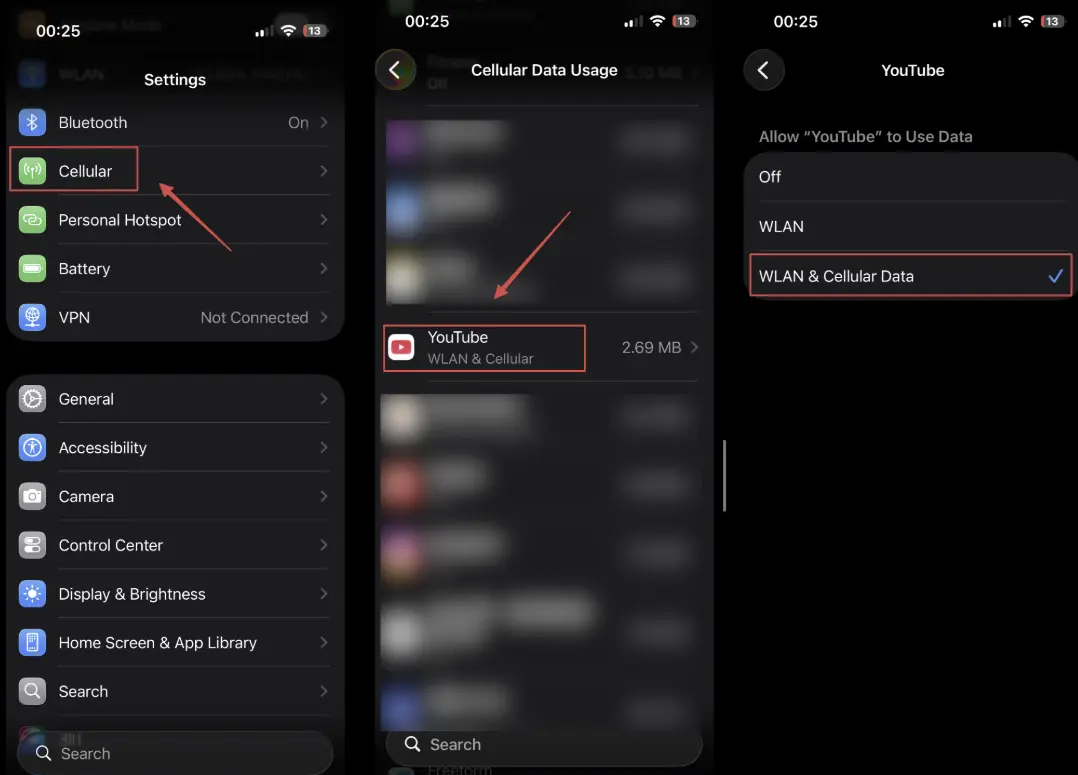
First, confirm that Wi-Fi or cellular data works by opening a normal webpage. If other sites work but Shorts still stalls, check whether YouTube is restricted from using mobile data or background data.
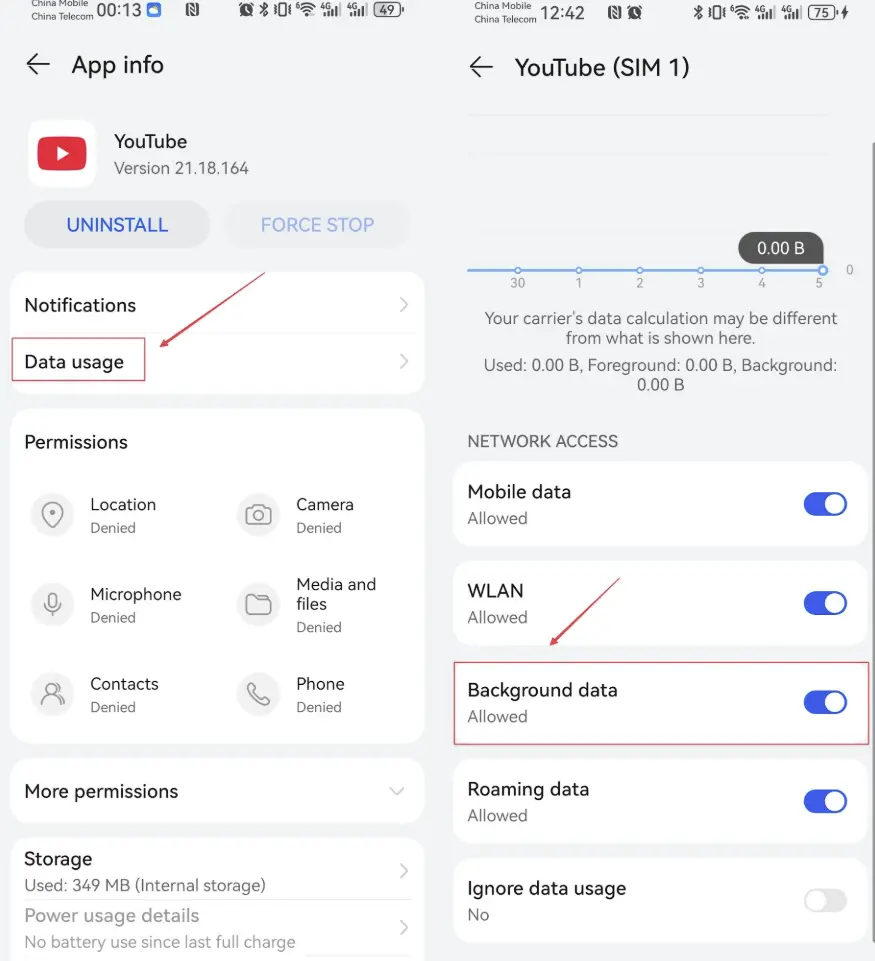
Android users: Go to Settings > Apps & services > Apps > YouTube > Data Usage.
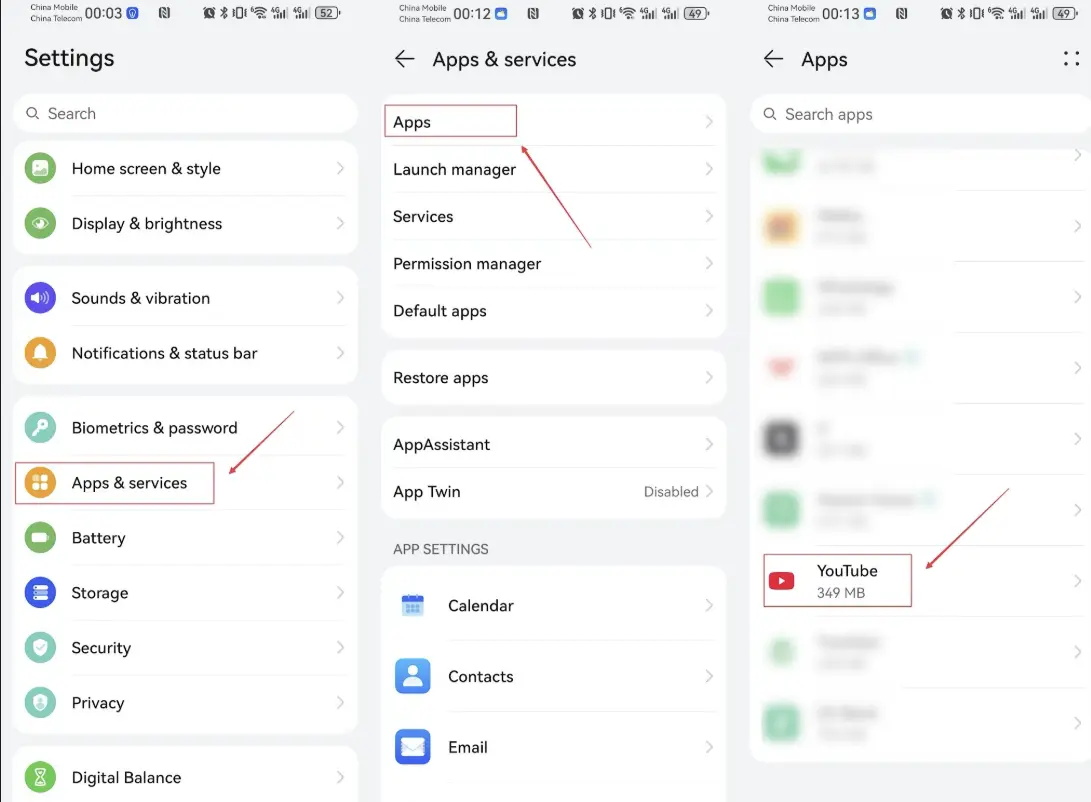
Then make sure Background Data is enabled.
iOS users: Go to Settings > Cellular, find YouTube, and confirm that the toggle is enabled.
2. Android: Force Stop and Clear Cache
Cache problems are a common reason YouTube Shorts will not load. On Android, go to Settings > Apps > YouTube > Storage, then tap Clear Cache. You can also force stop the app before reopening it.
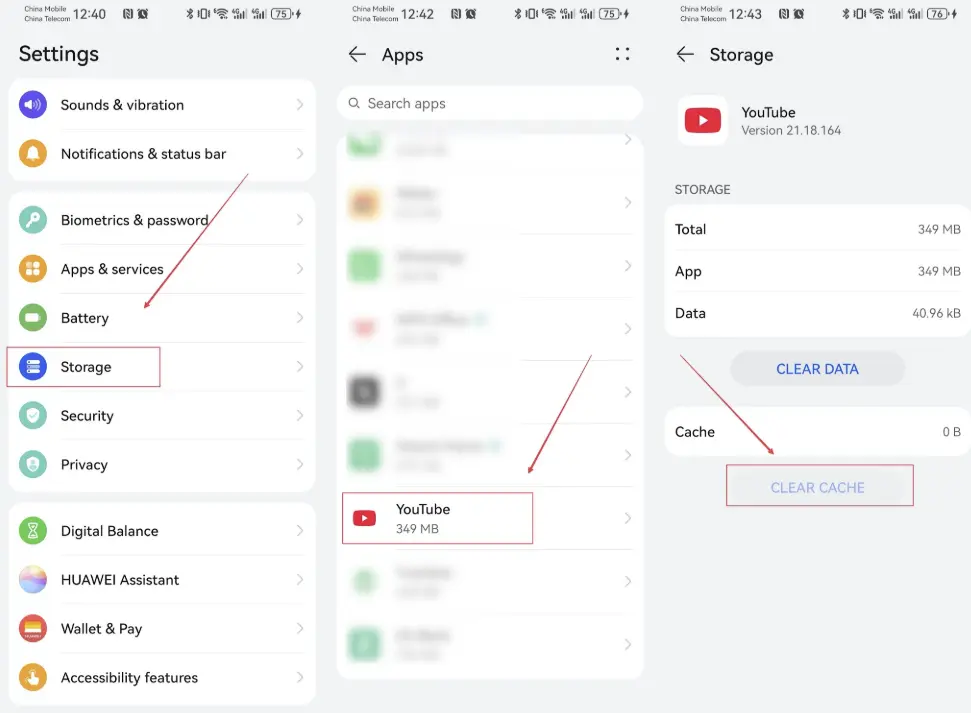
Avoid Clear Data unless necessary, because it may remove app state and offline downloads.
3. iPhone (iOS): Offload and Reinstall the App
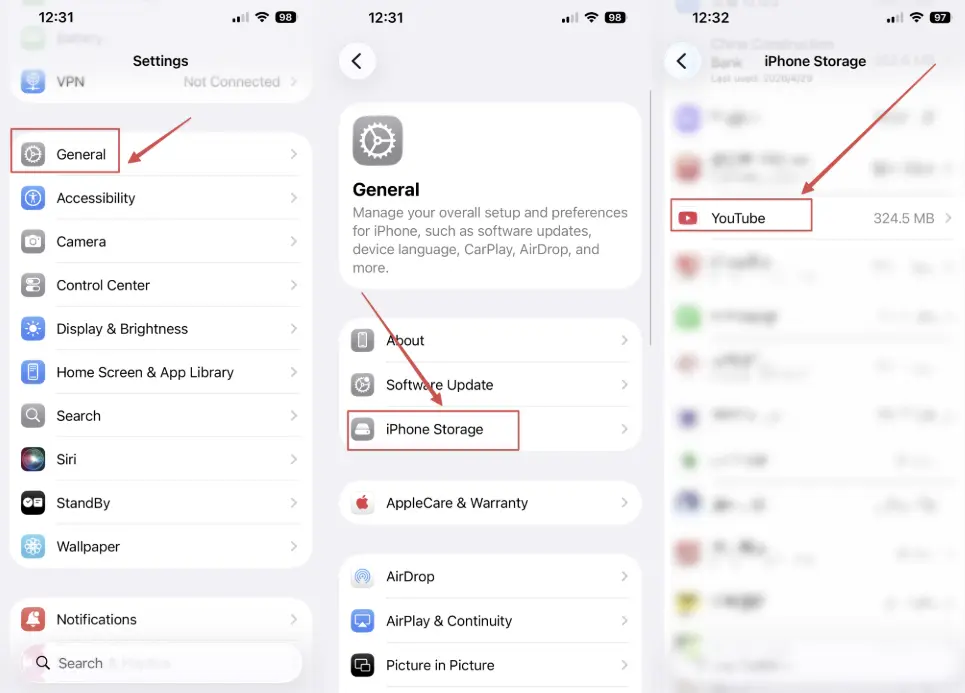
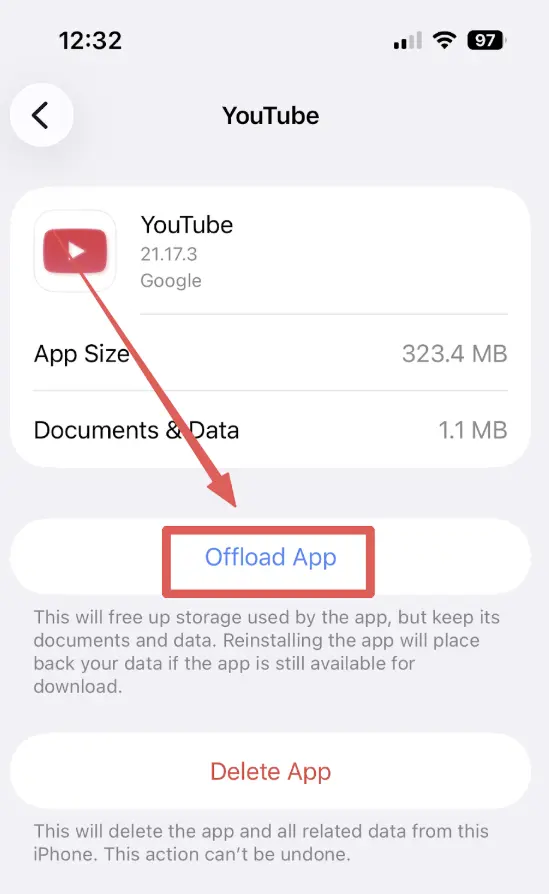
Unlike Android, iOS does not offer a simple clear-cache button for each app. If Shorts shows a black screen or never loads, offload and reinstall YouTube.
Go to Settings > General > iPhone Storage > YouTube.
Tap Offload App, then reinstall it. This refreshes the app files while keeping documents and login data.
4. Update the YouTube Application
If Shorts is missing or playback fails, your app version may be too old. Open Google Play or the App Store, search for YouTube, and install any available update.
5. Check VPN and Proxy Settings
An unstable VPN or proxy can make YouTube hide Shorts or block playback. Try switching servers, disabling the VPN, or returning to your normal connection.
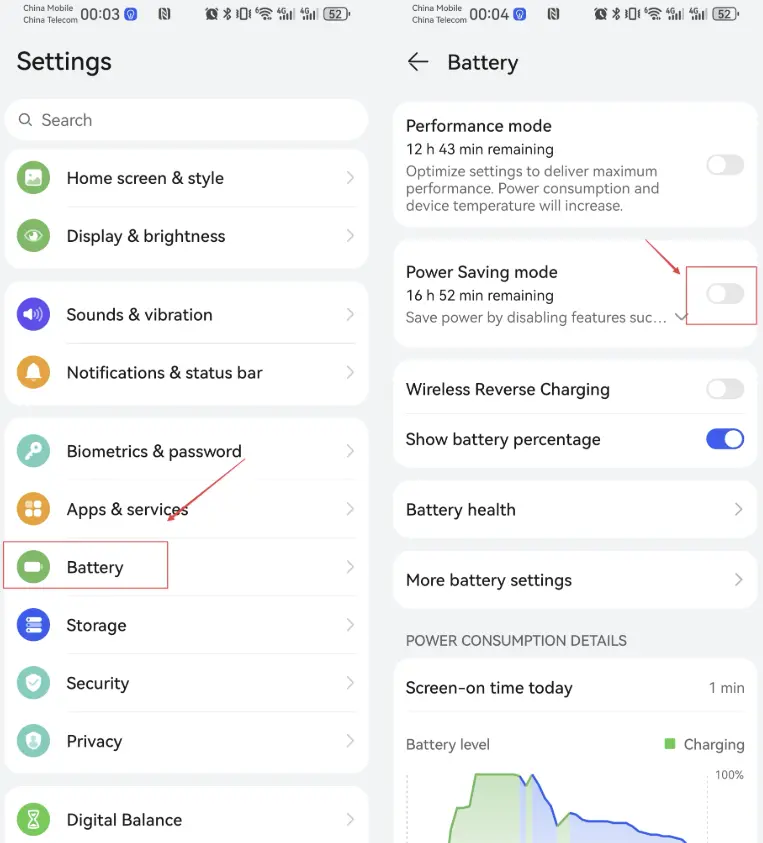
6. Check System-Level Power Saving Mode
Power saving modes can limit background activity and network performance. Go to Settings > Battery and turn off power saving mode while testing Shorts.
7. Resolve the Missing Shorts Tab
If the Shorts icon disappears from the bottom navigation, update the app and try switching accounts or opening Incognito Mode. If Shorts appears in Incognito, the issue may be tied to account settings such as Restricted Mode.
Desktop: Troubleshooting YouTube Shorts Not Working on PC
On desktop, YouTube Shorts playback issues often come from browser data, extensions, or graphics acceleration.
1. Disable Interfering Browser Extensions
Open YouTube in an Incognito window. If Shorts works there, an extension is probably interfering. Disable ad blockers, privacy tools, and script managers one by one until you find the cause.
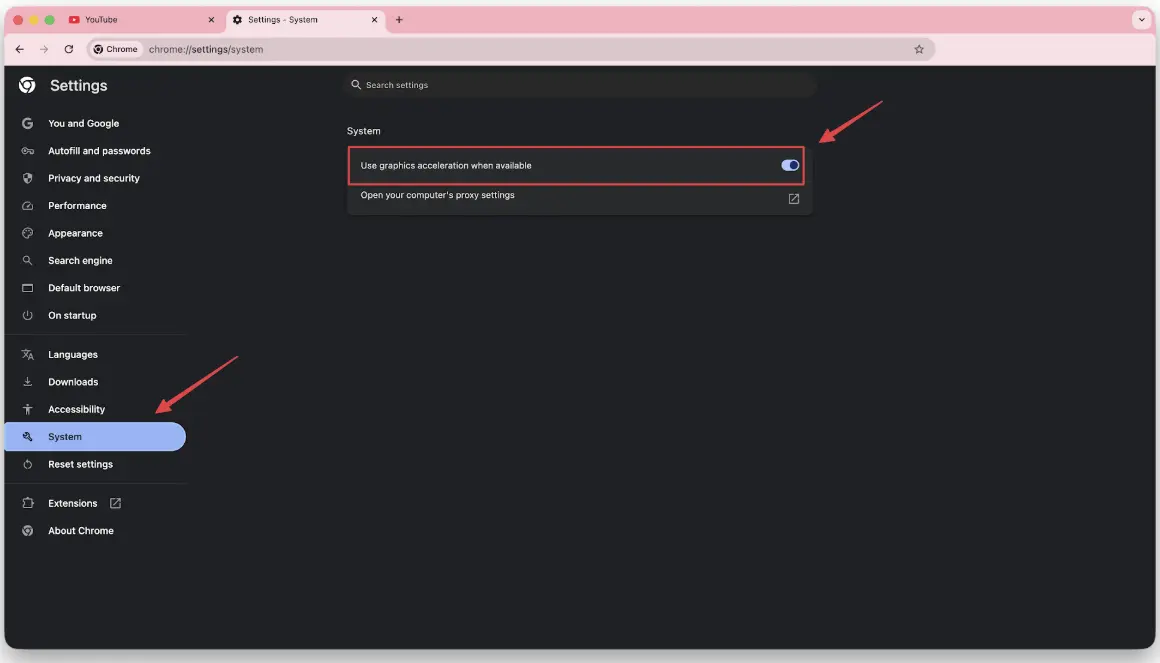
2. Fix GPU Hardware Acceleration Glitches
If you hear sound but see a black screen, the browser may be conflicting with the graphics driver. In Chrome, go to Settings > System and turn off graphics acceleration, then restart the browser.
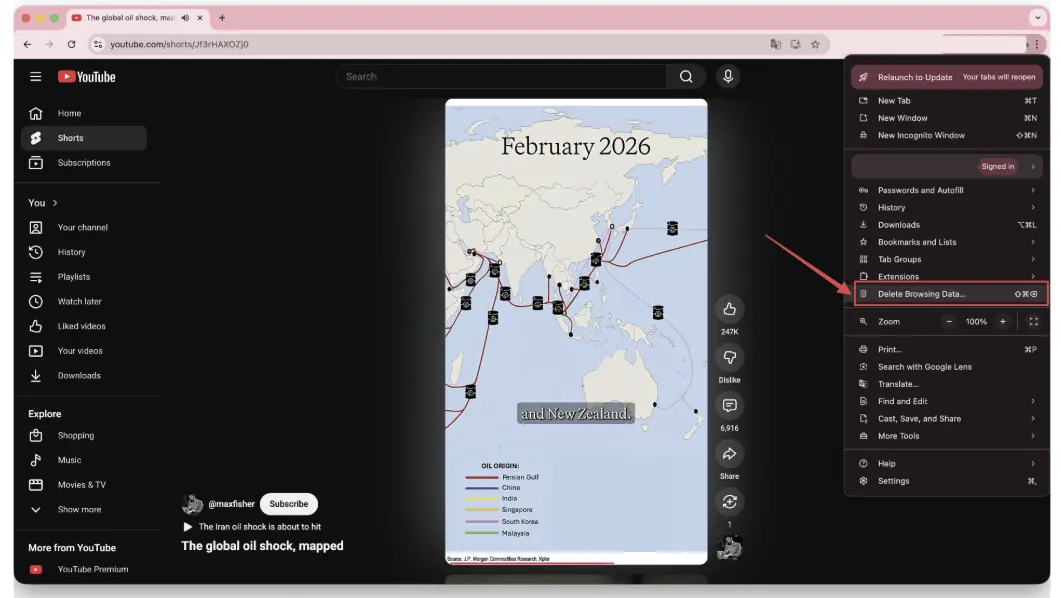
3. Clear Browser Cookies and Cache
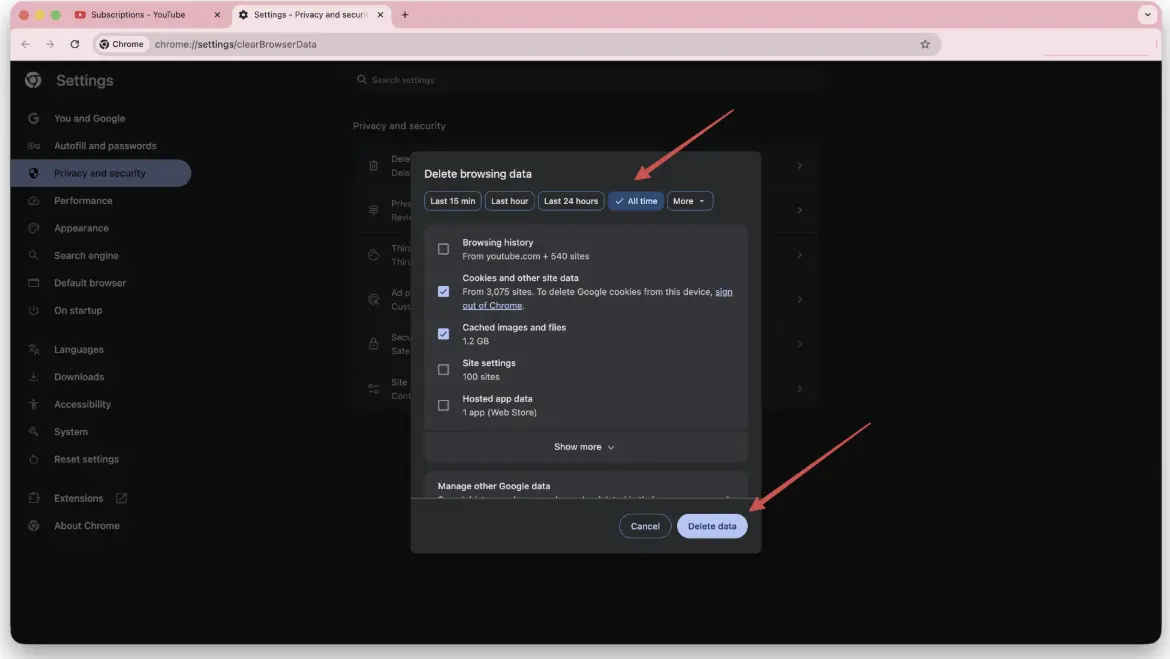
Expired cookies or corrupted cache can stop YouTube from loading Shorts correctly. In Chrome, open the menu and choose Delete Browsing Data.
Select all time, then clear cookies and cached images/files. Reload YouTube afterward.
Network Environment and Account Issues
Sometimes the app and browser are fine, but your account, DNS, or network environment blocks Shorts.
The Impact of Restricted Mode
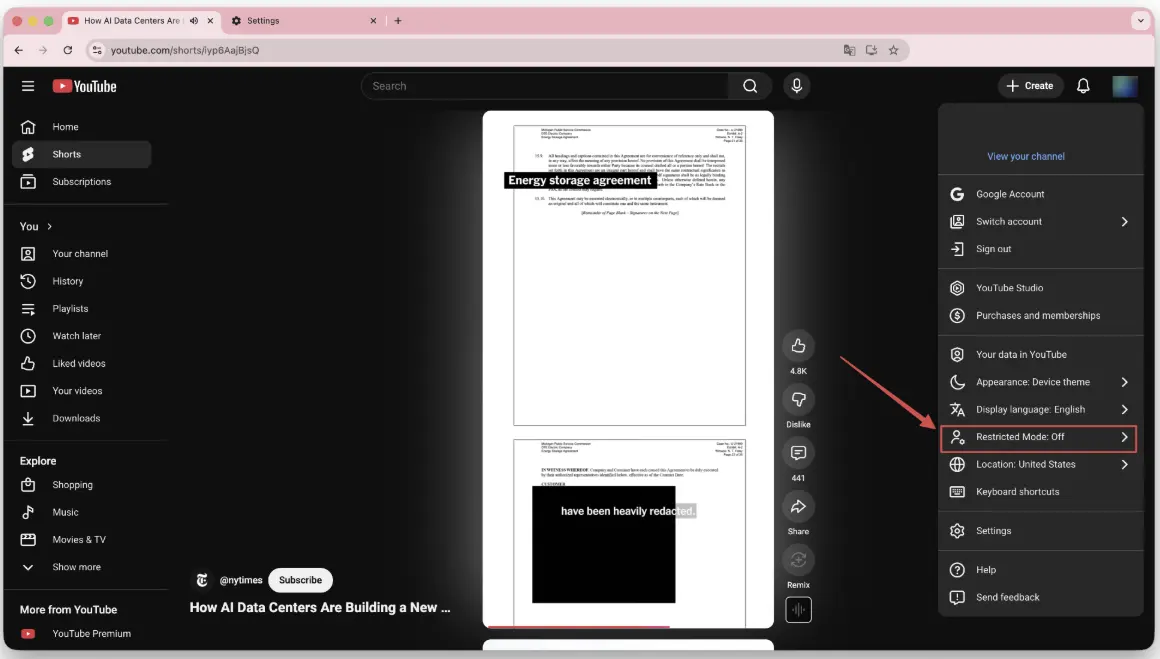
Restricted Mode can hide some Shorts because automated filters may classify short-form content incorrectly. Click your profile picture, find Restricted Mode, and turn it off.
DNS Resolution Latency
If Shorts constantly buffers, your DNS may be slow to resolve YouTube delivery servers. Try switching DNS to Google Public DNS (8.8.8.8 and 8.8.4.4) or Cloudflare DNS (1.1.1.1), then test again.
Troubleshooting for Creators
If your own Shorts are not appearing in the Shorts shelf, check the upload itself:
- Duration: Keep the video under 60 seconds.
- Aspect ratio: Use a vertical 9:16 format.
- Metadata: Add #Shorts in the title or description to help classification.
Advanced Solution: What if Online Playback Keeps Failing?
If playback remains choppy because of network throttling, local restrictions, or repeated app errors, offline viewing can be a practical workaround.
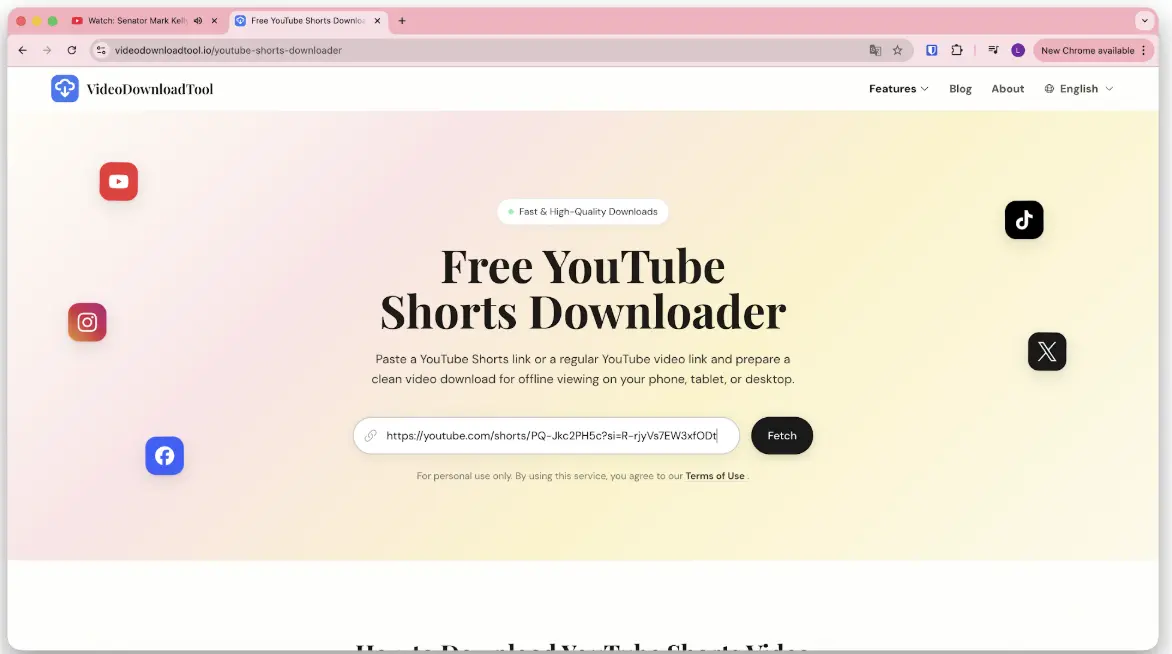
The YouTube Shorts Video Downloader lets you save supported Shorts for offline viewing. You can also use a general online video downloader when you need to save videos from other supported platforms.
You May Also Like: Best Online Video Downloaders in 2026
Summary and Final Advice
When YouTube Shorts is not working, check three areas first: app version, device settings, and network conditions.
- Step 1: Update the YouTube app and browser.
- Step 2: Clear cache, cookies, or reinstall the app.
- Step 3: Disable conflicting extensions, VPNs, and power saving modes.
- Step 4: If playback is still unreliable, consider saving supported videos for offline viewing.
If none of these fixes help, check YouTube's official channels or service monitors for a wider outage.