
YouTube Playback Speed Not Working? Try These Fixes! [2026]
It's incredibly frustrating when playback speed is not working on YouTube, especially when you want to speed through a tutorial or slow down a specific part of a video. In most cases, the problem is caused by a buggy browser extension, a bloated app cache, or a temporary YouTube update. The good news is that it is usually easy to fix once you identify the real cause.
In this guide, we will walk you through the most effective solutions to fix the problem and get YouTube playback speed control working properly again.
Part 1: Can't Change YouTube Playback Speed? Here's Why
Temporary YouTube Bug or Glitch
Sometimes playback controls stop responding because of a temporary platform issue. If playback speed isn't working on YouTube, it may be a short-term bug affecting certain users, especially during updates or experiments.
Extension or Ad Blocker Conflicts
Browser extensions, especially ad blockers, can interfere with YouTube's player. Many users report that they can't adjust playback speed on YouTube when extensions modify scripts or block elements required for speed control.
The Feature Isn't Available
Not all content supports playback speed. For example, YouTube Shorts currently does not allow speed adjustment, which is why some users think they can't change YouTube playback speed when the feature is simply unavailable.
Outdated Browser or App Version
If your browser or YouTube app is outdated, it may not fully support recent player updates. This can cause controls like playback speed to disappear or stop responding. Updating to the latest version usually restores normal functionality and prevents compatibility issues.
Corrupted Cache or Cookies
Over time, cached data can cause playback issues. This may lead to situations where you can't change playback speed on YouTube anymore, even though the feature should still be there.
Experimental Update Issues
YouTube often runs A/B tests. Some users may temporarily lose playback speed or experience bugs with it, which explains why behavior can differ between accounts.
Browser Update Issues
Occasionally, a browser update itself can create compatibility problems with YouTube, causing playback controls like speed adjustment to stop working properly.
Part 2: Solutions to YouTube Playback Speed Not Working Issues
Refresh the Page or Restart the App
Before trying anything more complex, start with a basic refresh. On desktop, reload the page. On mobile, close and reopen the YouTube app.
This simple step fixes many temporary issues where you can't change playback speed on YouTube, especially when the player fails to load properly. If the speed option was missing or unresponsive, it may come back after a refresh.
If the issue keeps happening, move on to the next steps.
Disable Ad Blockers and Browser Extensions
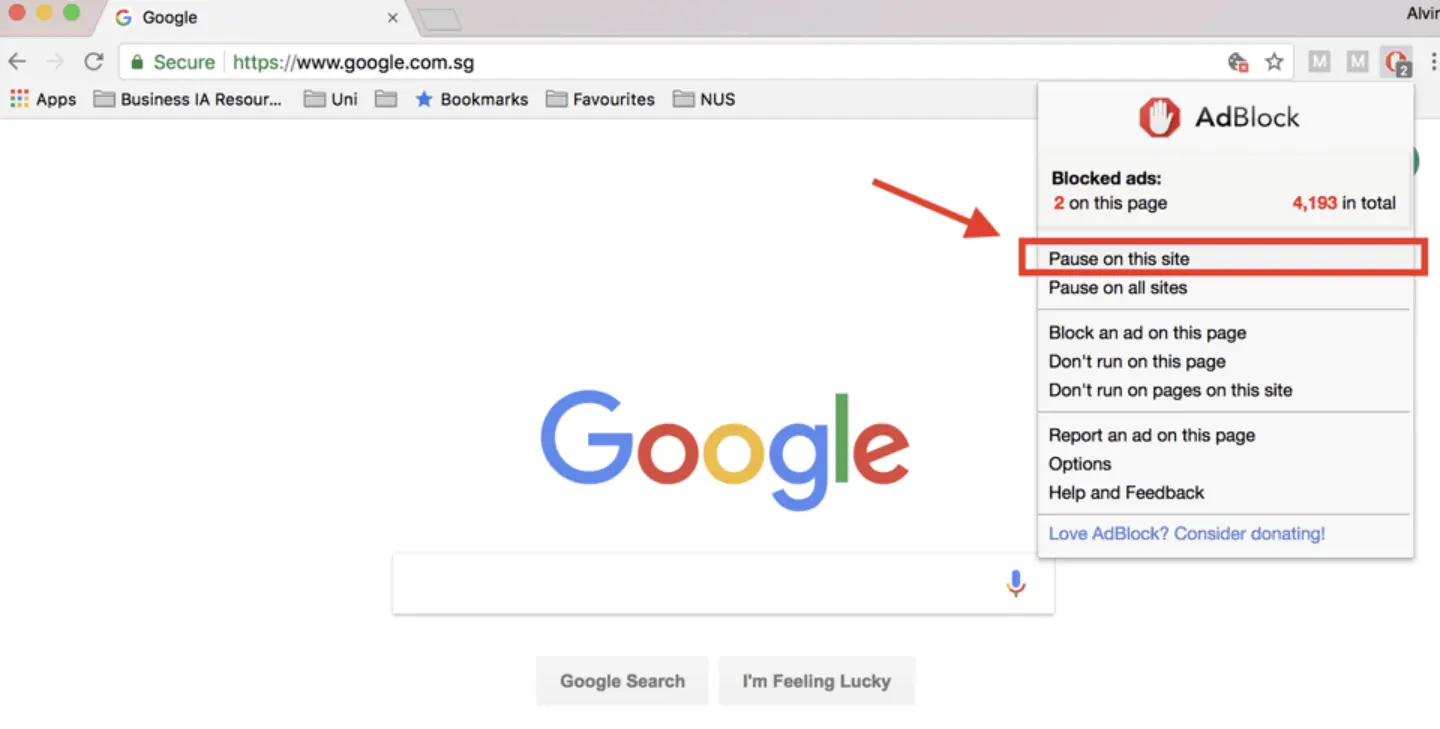
Extensions are one of the most common reasons why YouTube playback speed is not working. Ad blockers, script blockers, or even productivity extensions can interfere with how the video player loads.
To test this:
- Open your browser settings.
- Disable all extensions, especially ad blockers.
- Reload YouTube and check playback speed.
If it works again, re-enable extensions one by one to find the cause.
Many users eventually discover that an extension was blocking the control.
Clear Cache and Cookies
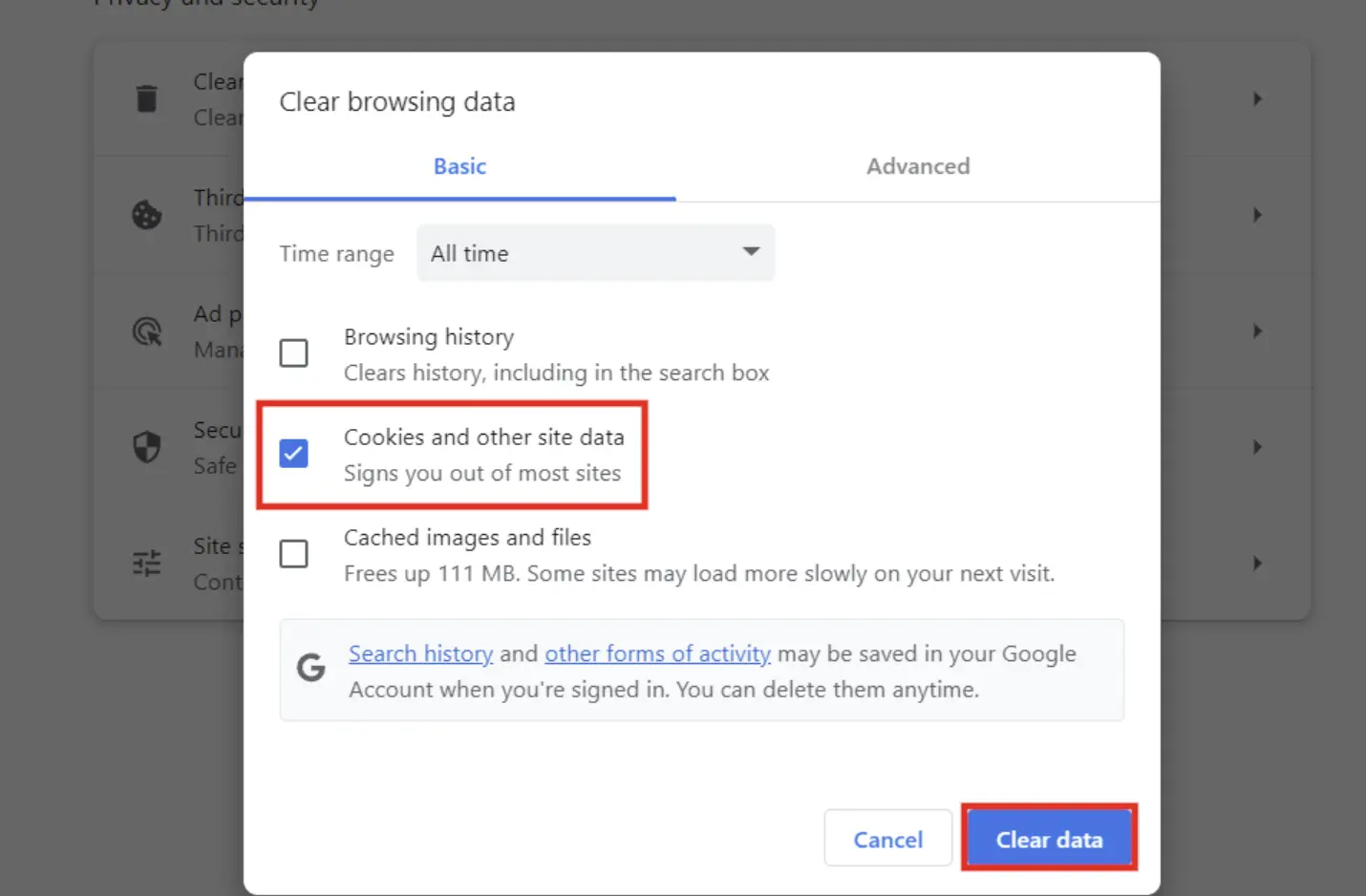
Stored data in your browser or app can gradually cause conflicts with how YouTube runs. When cache or cookies become outdated or corrupted, certain features may stop responding properly or fail to load altogether, even though they worked fine before.
To fix this, clear the stored data based on your device. On desktop, remove browser cache and cookies. On Android, clear the app cache in settings. On iPhone, reinstall the YouTube app. This often restores normal functionality and resolves unexpected playback issues.
Switch to Another Browser
If playback speed still isn't working, open YouTube in a different browser such as Chrome, Safari, or Edge. This is a quick way to check whether the issue is tied to your current browser.
If the speed control works in another browser, the problem is likely caused by settings, extensions, or data in your original one. If it doesn't work anywhere, the issue may be on YouTube's side rather than your device.
Update your Browser or YouTube App
Outdated software can cause compatibility issues. YouTube regularly updates its platform, and older versions of browsers or apps may not support all features.
Make sure your browser is updated to the latest version and your YouTube app is up to date.
Reinstall or Force Close the YouTube App
On mobile devices, the YouTube app can sometimes glitch or stop responding properly. When that happens, features like playback speed don't work as expected.
To fix this, force close the app, reopen it, and test again. If the issue continues, reinstalling the app can help clear deeper bugs and restore normal playback controls.
Check Device or Platform Compatibility
Playback speed isn't available on every device or video format. Some versions of YouTube have limited controls by design, which can make it seem like the feature is missing or broken.
For example, YouTube Shorts doesn't support speed adjustments at all, while smart TVs, game consoles, or embedded players may offer fewer options or none at all. In these cases, the issue isn't something to fix. It's simply a limitation of the platform or device you're using.
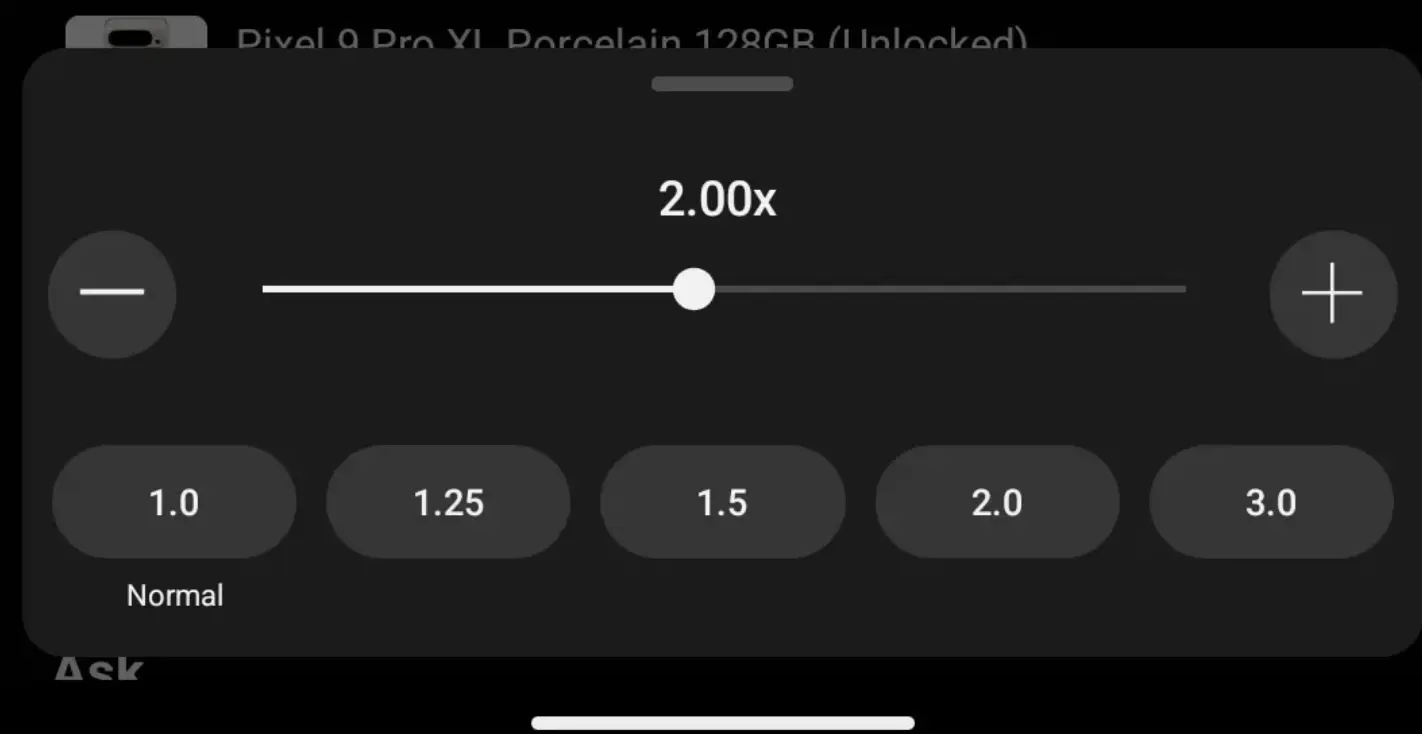
Use a Playback Speed Browser Extension
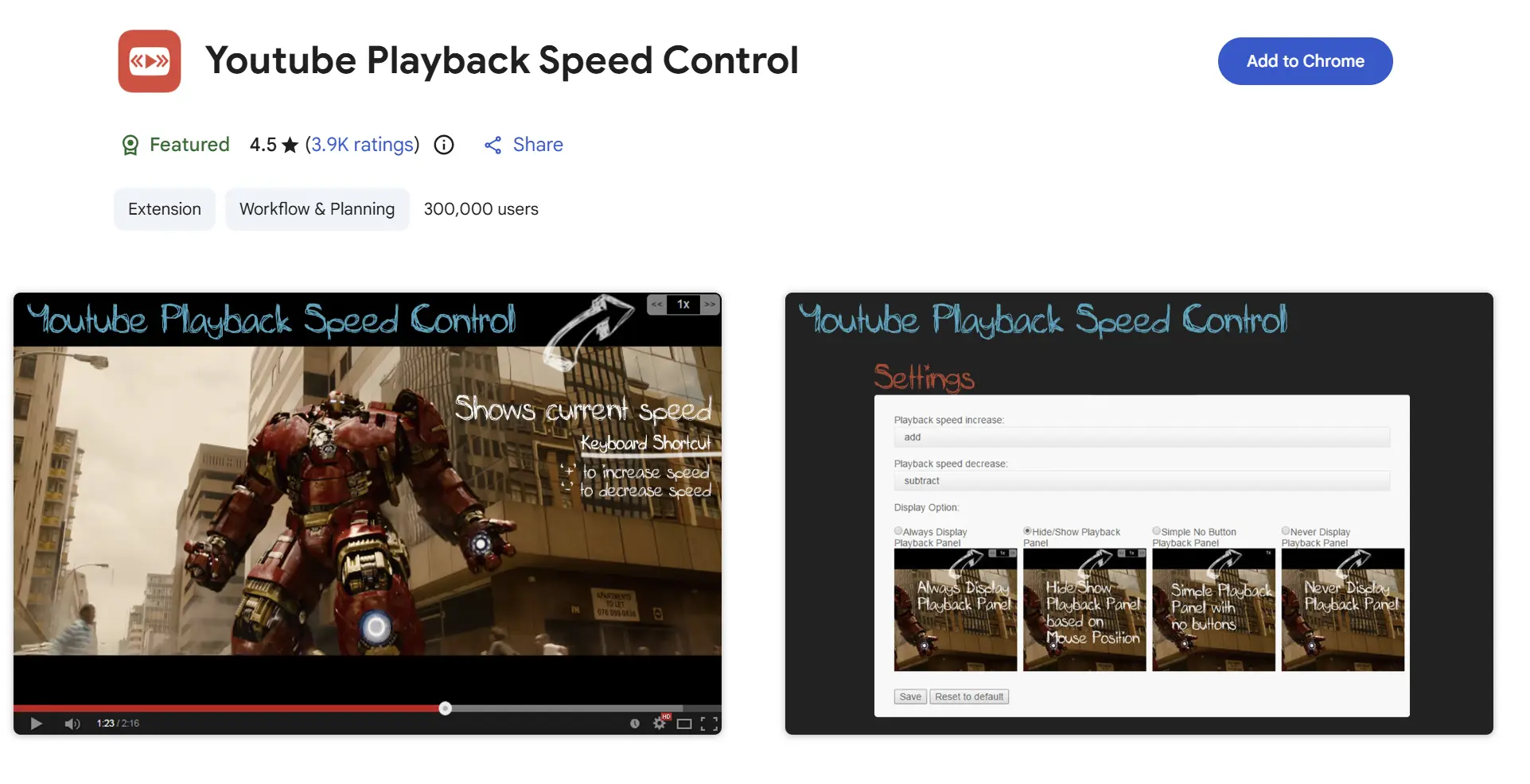
If the built-in control is missing or broken, you can use a browser extension to manually adjust playback speed.
Search for a reliable YouTube playback speed extension, and you'll be able to:
- Set custom speeds such as 1.25x, 1.75x, or 3x
- Control speed with shortcuts
- Override player limitations
This is a practical workaround, especially for desktop users.
Use A Patched YouTube App on Android
If you want playback speed control for Shorts on Android, you can try using a modified YouTube app that unlocks this feature. After installing it, you'll be able to adjust speed even in videos that normally don't support it.
That said, this method isn't officially supported, according to users on Reddit. To avoid issues, only download from trusted sources and avoid using your main account if possible. For most users, a safer option is to use browser-based solutions or extensions instead.
Wait for A YouTube-side Fix
If none of the usual fixes work, there is a good chance the issue is on YouTube's side rather than yours. YouTube occasionally introduces bugs, rolls out experiments, or makes backend changes that can break features like playback speed for a group of users at the same time.
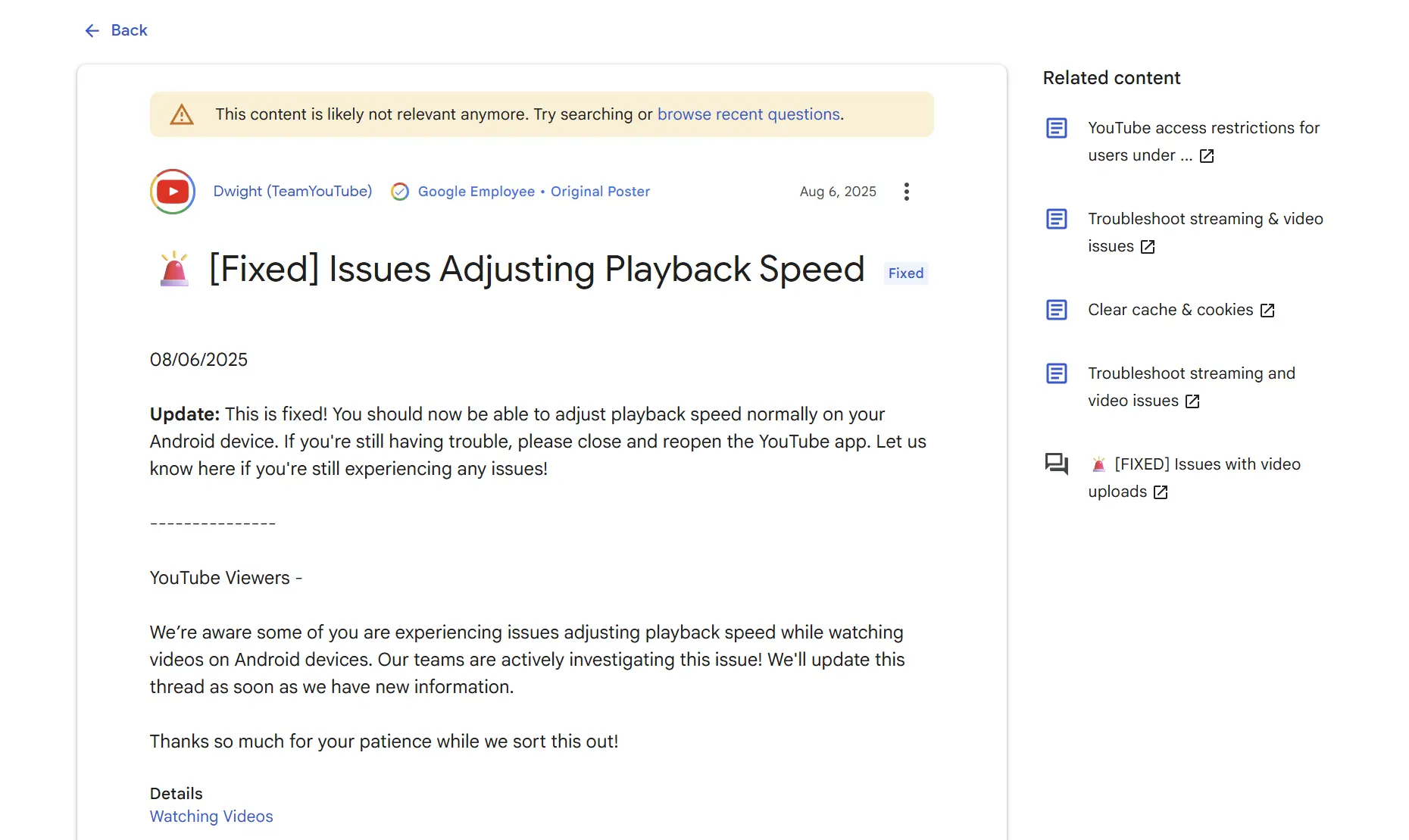
This has happened before. In August 2025, YouTube team acknowledged an Android playback speed issue in an official community post and later confirmed that it had been fixed. That kind of update is a good reminder that not every playback speed problem comes from your device, browser, or app cache. To confirm whether it is a wider issue, check recent Reddit posts, YouTube community threads, or other user reports. If many people are seeing the same problem, waiting for an official fix is often the best option.
Part 3: FAQs About YouTube Playback Speed
How do I change YouTube speed with the keyboard?
On desktop, you can use keyboard shortcuts to adjust playback speed quickly:
- Press
Shift + >to increase the playback speed - Press
Shift + <to decrease the playback speed
This works on most browsers and is useful if the playback menu is not responding.
How do I change the playback speed on YouTube Shorts?
You currently cannot change playback speed on YouTube Shorts using the default player. Shorts does not currently support built-in speed control, which is why some users think playback speed is not working on YouTube Shorts.
How do I enable 3x speed on YouTube?
Normally, YouTube playback speed goes up to 2x for most users. That said, some users have reported seeing a 3x option as part of a Premium-only or limited rollout. If 3x is not showing up on your account, it likely has not been enabled for your device or version of YouTube yet. For anything above 2x, many users still rely on browser extensions or other playback tools.
Did YouTube remove playback speed?
No, YouTube has not officially removed playback speed. However, some users may temporarily lose access because of experiments, bugs, or UI changes. This can lead people to search for phrases like "YouTube playback speed gone" or "YouTube playback speed removed."